Help & How to use
Everything you can do on Land Compass — find verified land, list and edit your property, transfer ownership, manage tenancies, and even drive the whole app from Claude or ChatGPT.
Quick start
Map, search & filters
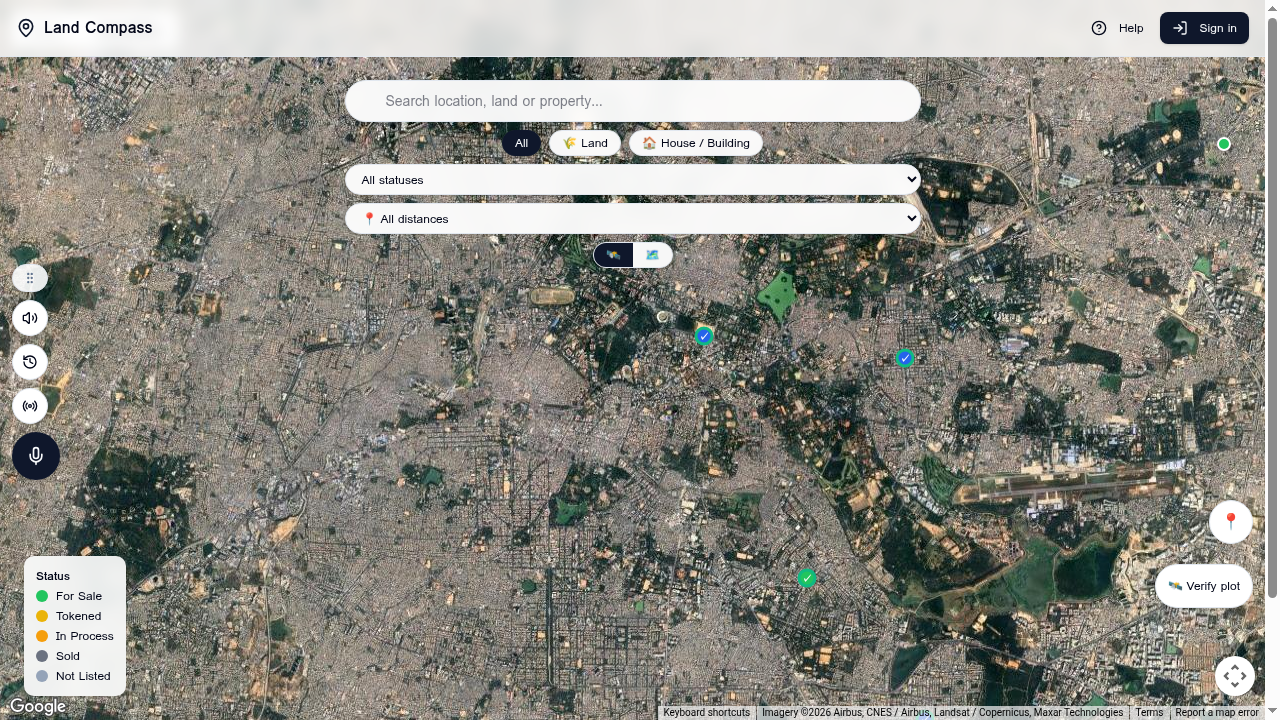
- Search bar — jump to an address, village, Makaan number, or registration number.
- Type chips — switch between All, Land and House / Building.
- Status — filter by For Sale, Tokened, In Process, Sold, Not Listed (see legend).
- Distance — limit the map to a radius around your location.
- Base layer chips — Map / Satellite / Hybrid / Terrain.
- Locate icon (bottom-right) — recentres on your current location.
- Floating side rail — drag handle, audio guide, history, live signal and voice mic.
🛰️ Verify plot — Bhulekh + Bhunaksha
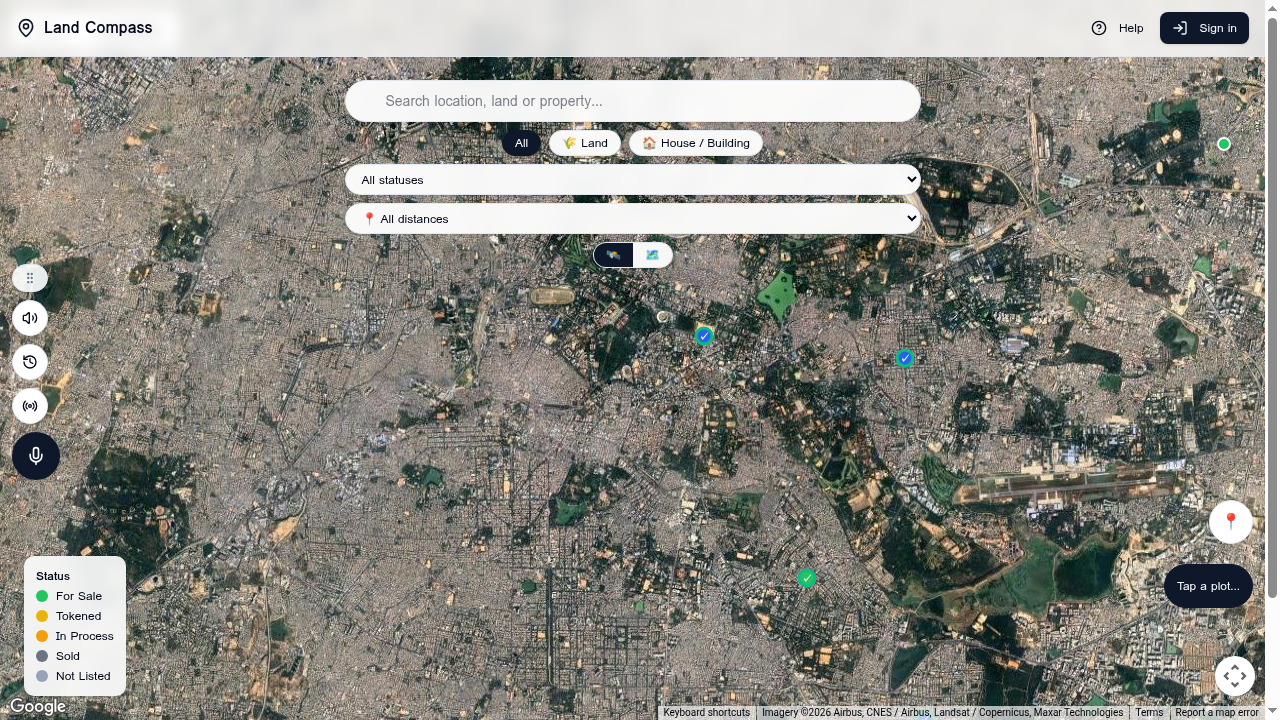
- Primary flow: tap → WMS GetFeatureInfo → Khasra → Bhulekh RoR → owner & area.
- Fallback: if Bhunaksha is slow or down, the same panel offers a manual Khasra search.
- Already-listed plots: in Verify mode, tapping a registered parcel still runs the verify flow instead of opening its preview.
- Coverage: Phase 1 supports Haldwani tehsil (Nainital). Other Uttarakhand tehsils are coming next.
Listing a property
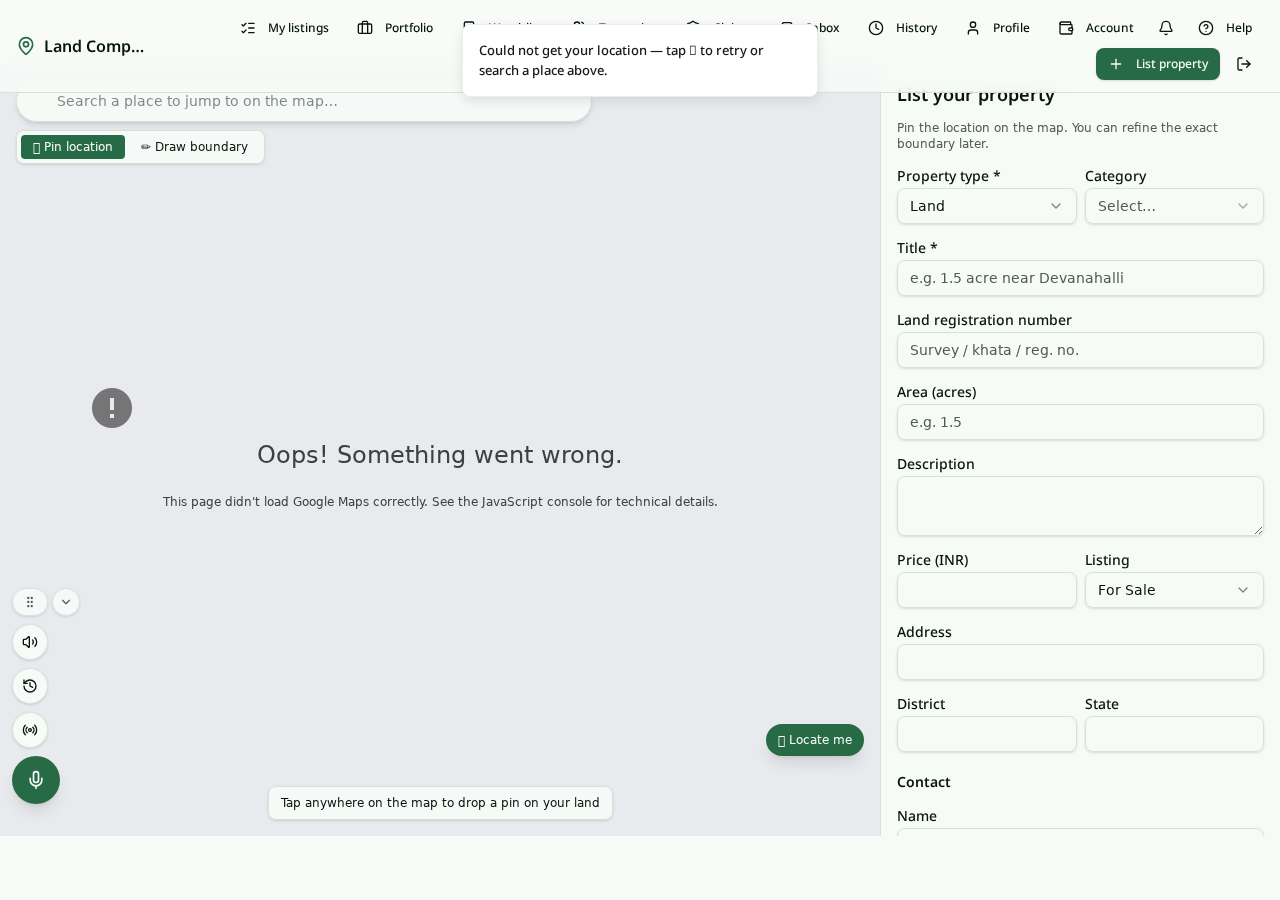
- Sign in, then tap List property (top nav, or + on mobile).
- Allow location, or search a place to recenter the map at the parcel's location.
- Draw the boundary polygon — tap points around the plot, then close the shape by tapping the first point.
- Fill title, price (₹ Lakh / Crore), area (sqft / Acres, auto-computed), status, photos, and contact preferences.
- Submit — your listing appears on the map immediately.
Editing your listing
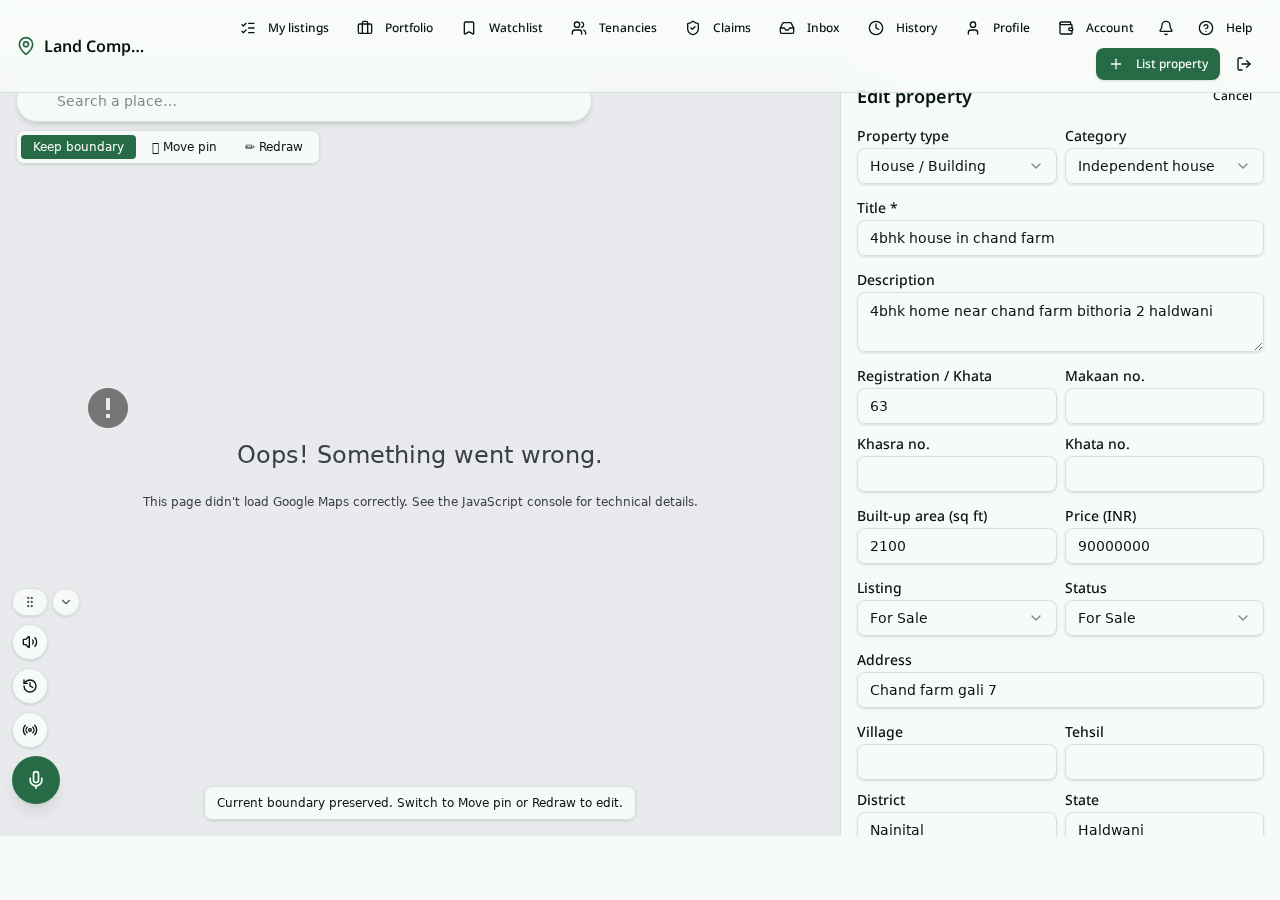
- Open Your Parcels and tap Edit on any parcel you own.
- Details — fix the title, price, status, Khata / Khasra / Registration numbers, or any field you missed when listing.
- Geometry — toggle Edit boundary to reshape the polygon if the original draw was off. Area recomputes on save.
- Photos — remove existing photos (trash icon) or add new ones; selected files show as thumbnails before you save.
- Documents — attach RoR, sale deed, mutation, NOC, tax receipt, plan map, etc., each with a tag from a fixed list (or use the free-form Other tag).
- Contacts — add or remove owner / agent / family contacts shown on the public detail page.
- Saves are scoped to you by ownership-level row-level security — no one else can edit your parcel.
Claiming ownership & the chain
- Open any parcel → Claim ownership to submit a claim with documents (RoR, sale deed, ID).
- Admins review claims; approved owners appear in the parcel's ownership chain.
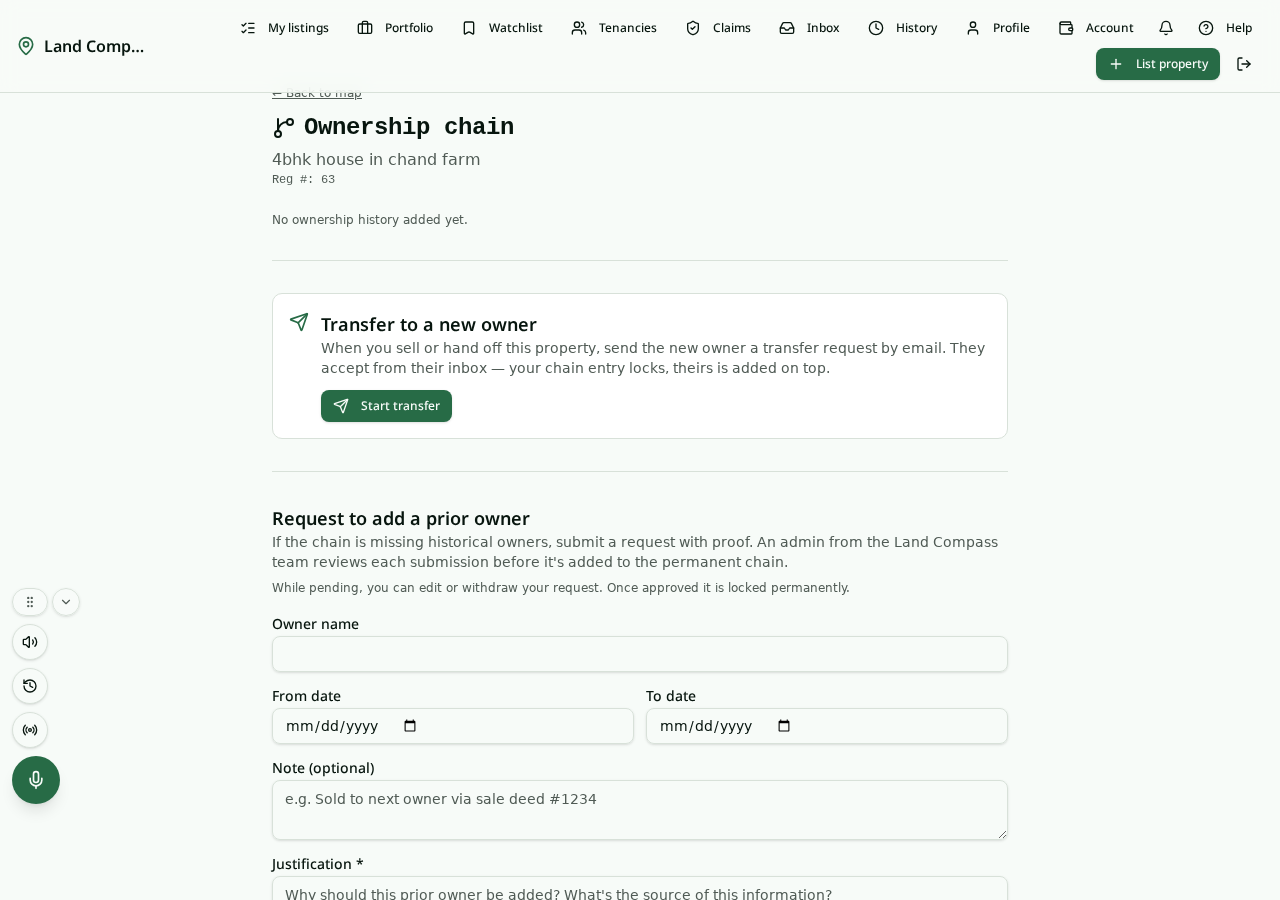
- View the full historic chain from the parcel detail page or open
/parcels/<id>/chaindirectly. - Track the status of your own claims in My claims.
- Prior-owner request: if you owned the plot before it was listed here, submit a prior-owner request from the chain page with proof documents so admins can stitch your tenure into the chain.
- Parcels with a complete, dispute-free chain show the 🧬 Ownership History Verified badge.
Transfers — selling or handing over
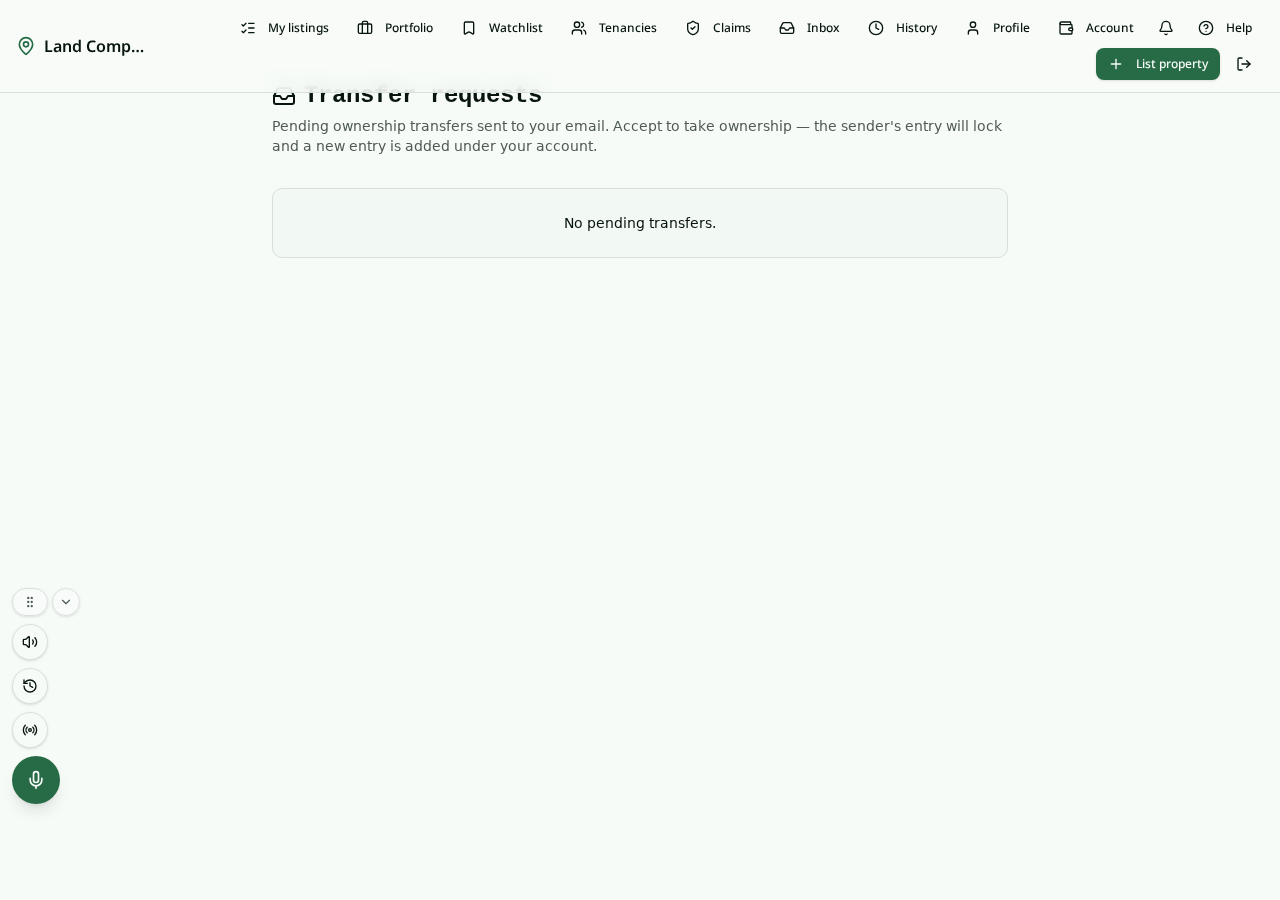
- From a parcel you own, tap Transfer and enter the buyer's email / phone, agreed price, and any token.
- The buyer gets a notification and can Accept or Reject from Inbox.
- On accept, the parcel moves to the buyer and the ownership chain updates automatically.
- Either party can cancel a pending transfer; admins can force-cancel stuck transfers if needed.
Tenancies
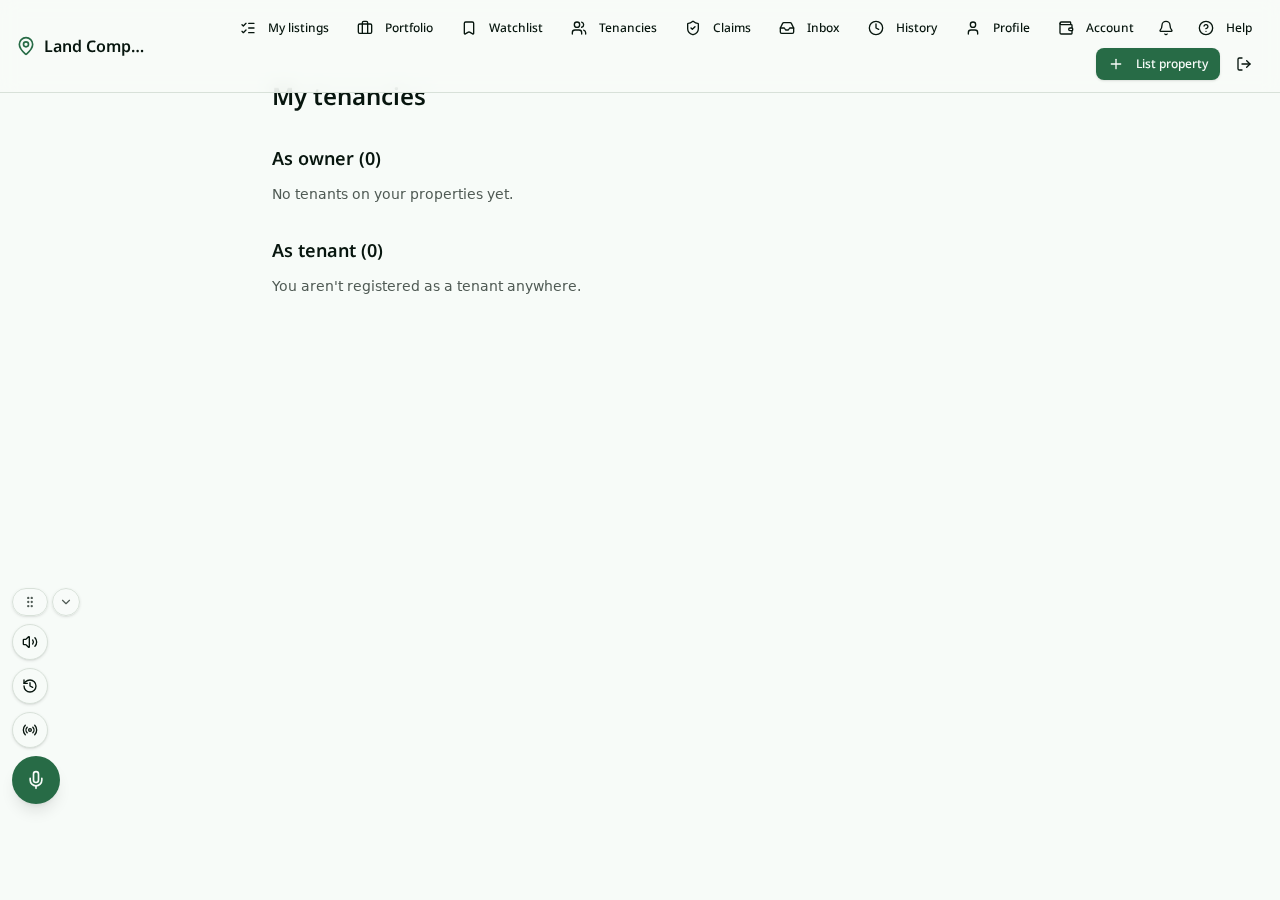
- Open Tenancies to record renters / lessees.
- Set start / end dates, rent, and notes. Tenancies show up on the parcel's history view.
Watchlist & notifications
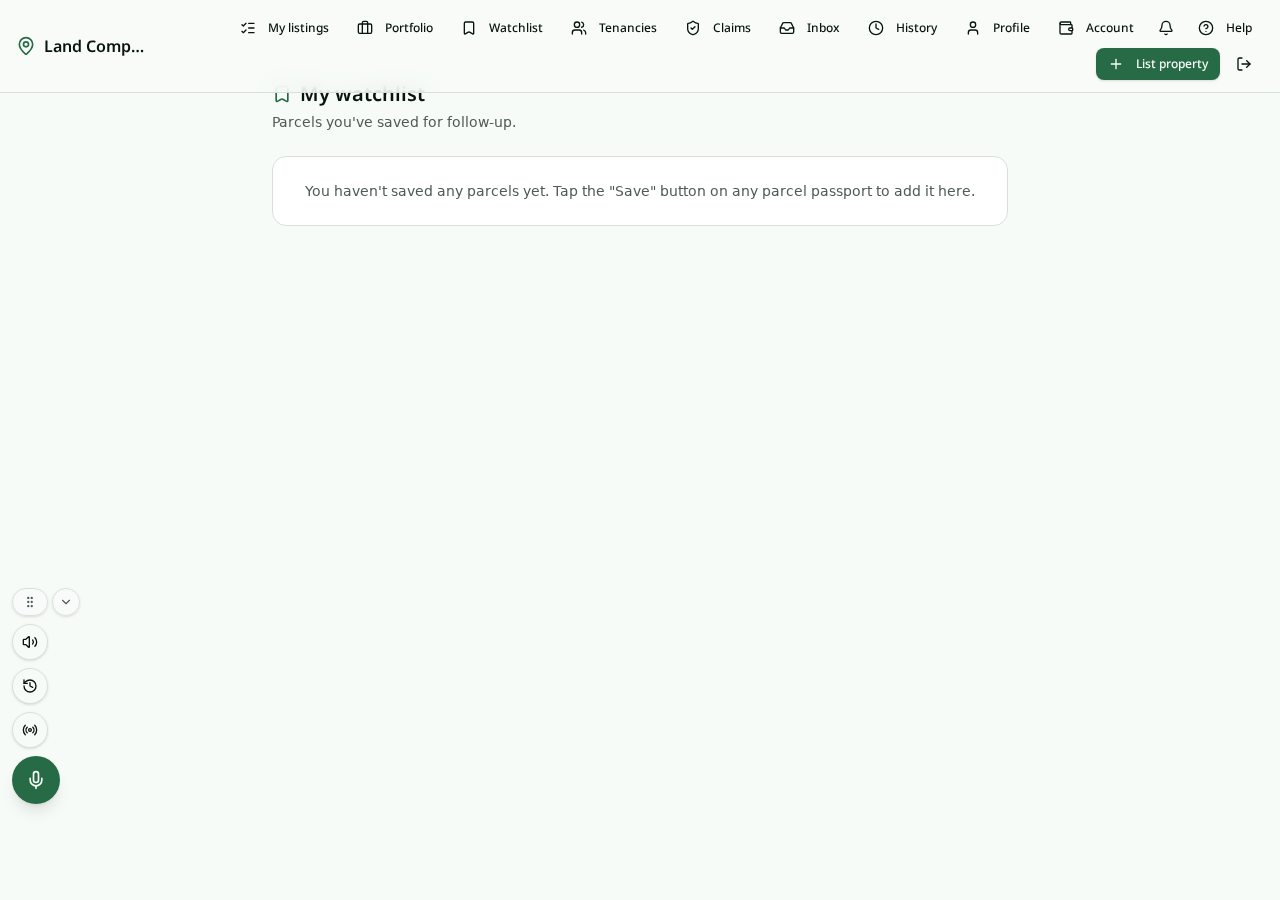
- Tap the bookmark on any parcel to add it to your Watchlist.
- The bell icon in the top nav surfaces claim approvals, incoming transfers, watchlist changes, and admin replies. Tap to mark as read.
My history, parcels & claims
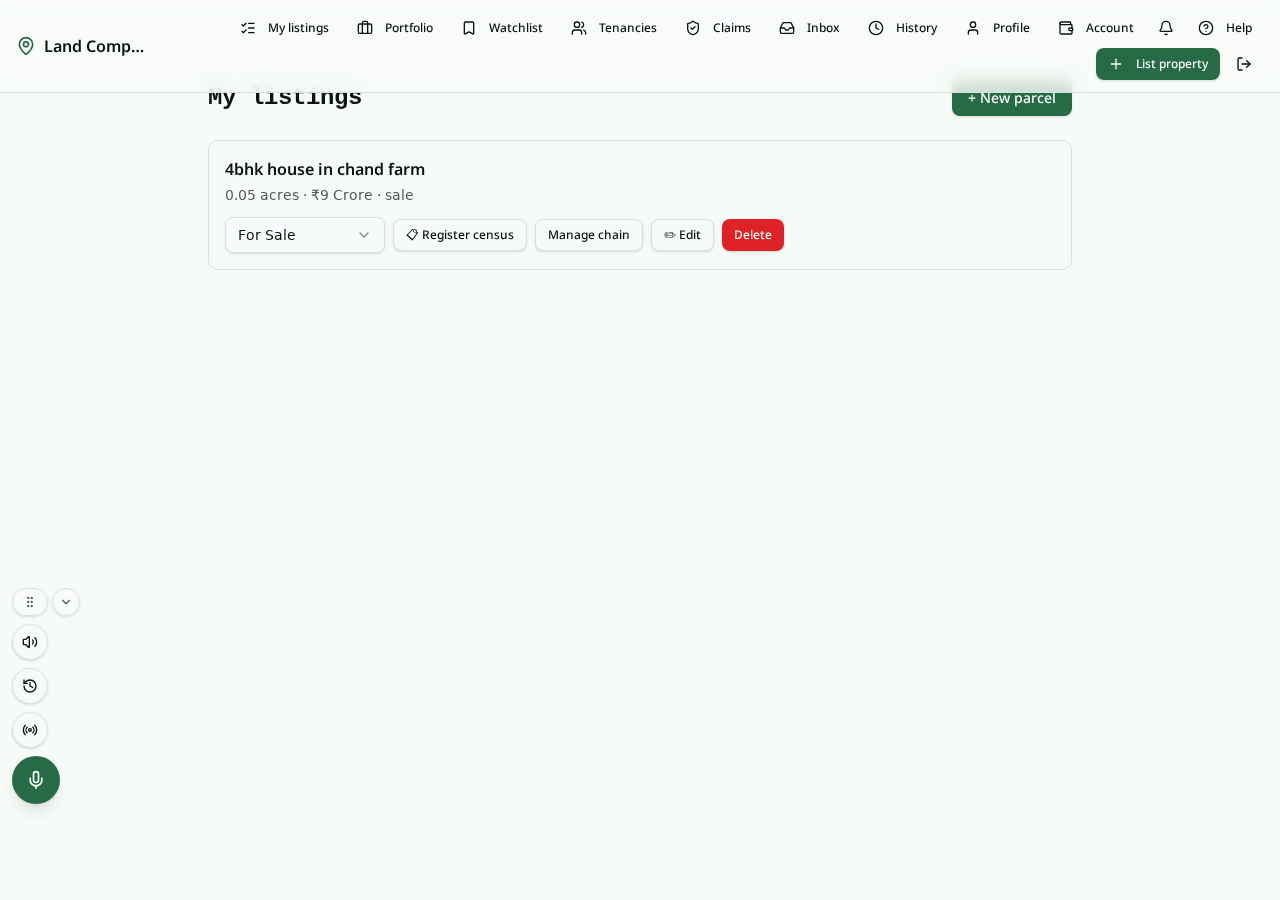
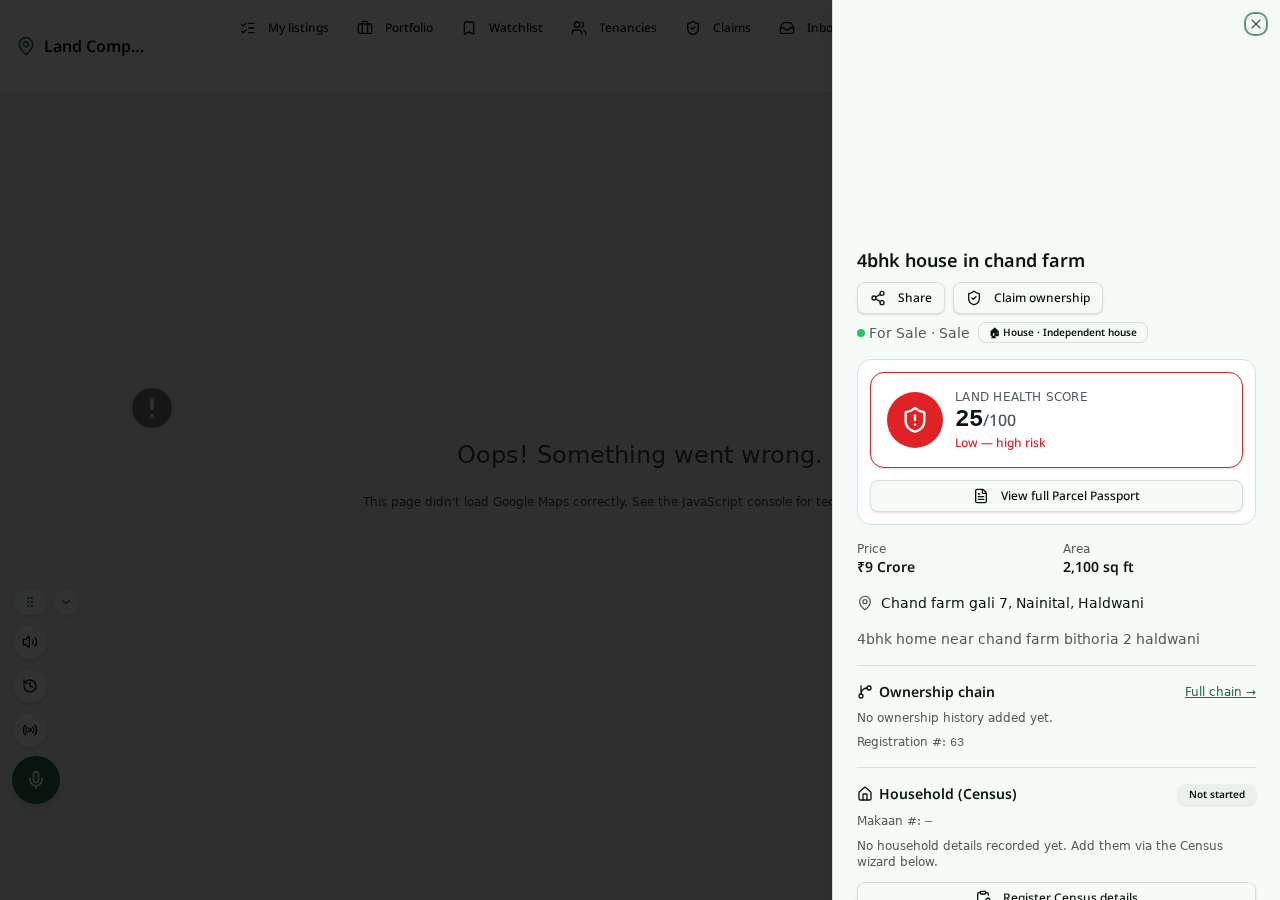
Parcel Passport & Trust score
- Every parcel has a public Passport at
/passport/<id>— a single page that rolls up trust score, ownership intelligence, risk, conflicts, documents, government match, expert opinions and the digital twin. - The Trust score combines ownership-chain completeness, document readiness, government-record match and conflict signals — tap any badge to see the drivers and what would improve it.
- From the passport you can request a verified report from a professional, open the digital twin, or download a PDF passport for sharing.
Digital Twin — live & historical
- Open
/twin/<id>(or the Digital Twin tab on a passport) to see the parcel's current state, evolution timeline, divergence vs government records, and health score. - The twin auto-updates as new documents, claims, transfers and government-match runs come in — every change is logged in the event ledger.
- Use the Divergence panel to spot mismatches (area, owner name, boundary) between Land Compass and Bhulekh / Bhunaksha.
Predictive Twin — forecasts you can audit
The Predictive Twin sits on top of the digital twin and answers six questions for each parcel, with drivers and confidence — no black-box price prediction.
- Ownership stability — is ownership likely to remain stable?
- Conflict probability — is conflict risk increasing?
- Verification completion — is verification likely to complete?
- Risk trajectory — is risk improving or worsening?
- Twin health — will the data quality drift?
- Attention score — which parcels need attention first?
Every prediction shows positive and negative drivers, a "what changed / what's next" view, and is stored as an auditable snapshot. Portfolio-level forecasts roll the same six signals up across all parcels in an organization.
Expert marketplace — lawyers, surveyors, banks
- Browse verified professionals at /professionals — filter by role (lawyer, surveyor, bank, developer), location and rating.
- From any parcel passport, tap Request review to commission a verified opinion (legal, survey, valuation cross-check). Pricing is shown up-front.
- Track requests you've sent in My reviews; professionals see incoming work in their workspace inbox.
- Completed reviews attach an Expert opinion badge to the parcel that all future viewers can see.
Professional workspaces
If you're a registered professional, you get a role-specific workspace:
- Workspace profile — public bio, credentials, pricing, service areas.
- Lawyer — assigned reviews, due-diligence templates, dispute timeline.
- Surveyor — assigned plots, boundary verification queue, divergence reports.
- Bank / NBFC — collateral readiness, risk dashboards, portfolio monitoring.
- Developer — pipeline of acquisitions, due-diligence status, conflict alerts.
Portfolio & saved searches
- Portfolio groups parcels you own or watch into one rollup — trust, risk, conflict and twin-health at a glance.
- Saved searches re-run any filter you've used; new matches surface in the bell.
- Watchlist tracks individual parcels you don't own but want to follow.
Enterprise — banks, NBFCs, developers, government, insurers
Land Compass exposes the same intelligence behind the consumer app as a programmatic platform for organizations.
- Enterprise dashboard — pick or create an organization workspace.
- Portfolios — group thousands of parcels; get rolled-up trust, risk, conflict and predictive forecasts.
- API keys — issue per-organization keys with scopes; revoke any time.
- Webhooks — receive callbacks when a parcel's score, conflict status or verification state changes.
- Usage analytics, rate limits & audit log — every API call is logged and rate-limited per organization.
- Public APIs at
/api/public/v1/*— Ownership, Verification, Risk, Digital Twin, Due Diligence, Conflict and Portfolio Intelligence. Full spec at /enterprise/docs.
Profile & account
Paid chain views (credits)
- Some parcels' full ownership chain is behind a small fee to discourage scraping; you get a free monthly quota.
- Buy a credit pack from the chain page or from Account — Razorpay for INR, Stripe for international cards.
- Credits are stored against your account and consumed only the first time you open a chain you haven't viewed before.
Ask Land Compass — AI assistant + voice
- The Ask Land Compass button is always at the bottom-right of every screen. Tap to chat; press & hold to speak — your voice transcript is sent straight to the assistant.
- The assistant is context-aware: on a parcel passport it suggests prompts like "Why is the trust score 72?" or "Is this parcel safe to buy?"; on listing / search pages it suggests "Find land for sale near me" or "Show my listings".
- Behind the scenes a team of specialist agents (ownership, verification, risk, dispute, twin, predictive, due-diligence, reconciliation, document, explainability) collaborates to answer — every response cites the parcel data it used.
- Any write action (create parcel, initiate transfer, submit prior-owner request) appears as a pending action you explicitly approve before it runs.
Connect to Claude / ChatGPT (MCP connector)
Land Compass exposes itself as an MCP server so you can talk to the app from Claude Desktop, the ChatGPT desktop app, or any other MCP-aware assistant — ask it to list your parcels, search public listings, or start a transfer, and it will do it through your account (with your approval for any write).
Option A — One-click OAuth (recommended)
- Open your assistant's Custom connectors / MCP servers settings.
- Paste this server URL:
https://landcompass.co.in/api/public/mcp - The assistant will register itself automatically (Dynamic Client Registration) and open the Land Compass Authorize screen. Sign in if needed, review the scopes, and click Allow.
- You'll be redirected back to your assistant — the Land Compass tools will appear in its tool list.
Option B — Personal API token (for scripts / power users)
- Go to Account → Connect to AI Assistants.
- Click Generate token, give it a name, and copy the
lc_pat_…value (you'll only see it once). - In your assistant, add a custom MCP server with header
Authorization: Bearer lc_pat_….
What the assistant can do
- Read (no approval): your parcels, a parcel's details, ownership chain, your transfers, your profile.
- Public search: search listed parcels, geocode an address, run Bhulekh / Bhunaksha lookups.
- Writes (always prompts you for approval in the assistant): create a parcel, initiate / reject a transfer, submit a prior-owner request.
Revoke a token or an OAuth connection any time from Account → Connect to AI Assistants.
Onboarding tour
- The first time you visit, an onboarding tour walks through the main controls. Tap Skip any time.
- You can replay the tour from Account → Show onboarding again.
FAQ & troubleshooting
- The map is blank / stuck on satellite imagery. Check your connection, then reload — base tiles are fetched from Google / Bhunaksha and need network access.
- Verify plot says "no Khasra here". Tap a slightly different point inside the same plot, or use the manual Khasra search in the same panel.
- Edit says "Permission denied". Make sure you're signed in with the same account that owns the parcel — only the current owner can edit.
- I uploaded photos but they don't appear. Photos load through short-lived signed URLs and refresh automatically; if a tile shows a placeholder, reload the page.
- I'm not getting transfer notifications. Open Profile and confirm your email / phone are verified.
- Claude / ChatGPT can't connect. Make sure you used the URL
/api/public/mcp(not/api/mcp) and that you completed the Authorize screen. - I lost my API token. You can't retrieve it — revoke the old one in Account and generate a new one.
- Where did the mic button go? Voice is now built into the Ask Land Compass button (bottom-right) — press & hold to speak.
- I'm an enterprise customer and my API key is missing. API keys live per organization at /enterprise → your org → API keys; only org admins can issue them.
- A prediction looks off. Open the driver list under any predictive card — every score shows which signals pushed it up or down so you can challenge it.
Need more help?
Reach out from the Contact page — we usually respond within a day.